
Are Your Customers Leaving Due to Slow WordPress Sites? The Timeout Error is Costing You Sales.
If you or your clients run a successful e-commerce site using powerful, feature-rich WordPress themes like WoodMart, Flatsome, Avada, or The7, you’ve likely encountered the frustrating PHP Timeout Error during a critical moment—importing a demo, saving a complex page, or checking out.
This isn’t a server failure; it’s a resource misconfiguration. By default, most hosting packages set PHP limits too low for modern, complex WordPress operations. This causes scripts to stop mid-process, leading to lost time, incomplete updates, and a poor user experience.
At TrendesignersHost, we understand that these themes are essential for high-converting sites. That’s why we empower our clients to adjust the exact settings needed to run them flawlessly.
The Problem: The Default PHP Limits Are Killing Your Performance
Every PHP script (WordPress, themes, and plugins) has a strict allowance for how much memory it can use and how long it can run before the server cuts it off. For modern WooCommerce stores running multi-functional themes, the standard limits are simply too small:
Setting | Standard Default | The Impact of Being Too Low |
|---|---|---|
memory_limit | 128M | Causes “Allowed memory size exhausted” errors, crashing page builders or theme imports. |
max_execution_time | 30 seconds | Prevents PHP scripts from timing out during backups or complex saves. |
max_input_vars | 1000 | CRITICAL: Causes lost theme options or data when saving complex menus or page builder content. |
max_input_time | 60 seconds | Causes upload failures for large files if the transfer takes too long. |
The Solution: Set the Resource Defaults That High-End Themes Demand
The fix is simple: directly increase these resource limits in your hosting control panel. Here are the minimum recommended values that TrendesignersHost sets for optimal performance with themes like WoodMart and Flatsome:
Setting | TrendesignersHost Recommended Value |
|---|---|
memory_limit | 512M (or 256M minimum) |
max_execution_time | 300 seconds (5 minutes) |
max_input_vars | 3000 or 5000 |
max_input_time | 300 seconds (Matches execution time) |
post_max_size | 64M |
upload_max_filesize | 64M |
Step-by-Step Guide for TrendesignersHost Clients (DirectAdmin)
The easiest and fastest way to implement these fixes is directly through the “Select PHP Version” tool in DirectAdmin. If you are a Reseller with us, you can implement this fix for any of your client accounts in minutes:
Log In to DirectAdmin Log in to your DirectAdmin panel using your credentials.
Navigate to PHP Settings In the main menu, under Advanced Features, click Select PHP Version. This tool allows you to instantly modify your PHP configuration.
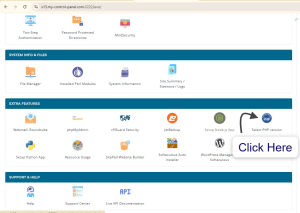
Access the Options Tab Once inside the PHP selector, click the Options tab. This is where you can change the configuration values.
Adjust the Values Locate the settings we recommend (memory_limit, max_execution_time, max_input_vars, etc.) and use the dropdown menus or input boxes to adjust the values to our recommended levels (e.g., set
memory_limitto 512M).Save Changes Click Save at the bottom of the page to apply the changes immediately. Your high-performance themes now have the resources they need!
Alternative Method: Direct Edit via PHP Settings (Advanced Configuration)
If you are unable to use the “Select PHP Version” tool or prefer to manage settings globally across your account, you can use the more granular PHP Settings tool:
Log In and Navigate: Log in to your DirectAdmin panel and go to Advanced Features > PHP Settings.
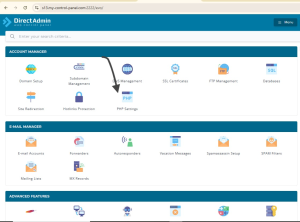
Locate Configuration: Look for the section that lists the core PHP configuration directives. This might be titled “Edit Configuration” or “PHP Directives.”
Enter Directives: Manually input or adjust the recommended values directly into the corresponding fields. You will be looking for the following settings:
Set
memory_limitto 512MSet
max_execution_timeto 300Set
max_input_varsto 5000Set
max_input_timeto 300Set
post_max_sizeto 64MSet
upload_max_filesizeto 64M
Save: Click the Save or Apply Changes button to make the settings live across your entire account.
Increase Reliability Today
Don’t let preventable timeouts sabotage your or your client’s business. Implementing these small configuration changes ensures your high-performance themes have the reliable resources they need to run smoothly, leading to faster site operations and happier clients.
Are you tired of fighting with restrictive hosts? TrendesignersHost offers optimized DirectAdmin environments and gives you the freedom to configure your PHP limits correctly from day one.
